In this tutorial, we will learn how to send simple text messages to our WhatsApp number using Node-RED. Node-RED is a free, open-source, flow-based development tool widely used in IoT applications. It provides a visual programming interface where you connect nodes wired together as flows to build powerful automation workflows without writing complex code. We will use the CallMeBot API to send messages from Node-RED to our WhatsApp account. CallMeBot is a free WhatsApp API that is helpful in sending message notifications, sensor readings, motion detection and door-opening alerts.
Sending WhatsApp notifications from Node-RED is particularly useful in IoT and home automation projects. For example, you can set up alerts that notify you when a sensor detects unusual temperature readings, when motion is detected by a PIR sensor, or when a door or window is opened. Because WhatsApp is installed on most smartphones, these notifications arrive instantly and are easy to read, making it an ideal channel for real-time alerts. This tutorial walks you through the entire setup process, from obtaining your API key to creating and deploying the Node-RED flow.
Buy raspberry pi here: Buy here
Prerequisites
Before starting this tutorial, make sure you have the following prerequisites in place. You will need a Raspberry Pi (any model with networking capability) running Raspberry Pi OS, with Node-RED installed and running. If you have not installed Node-RED yet, follow our guide on installing Node-RED on Raspberry Pi. You will also need a smartphone with WhatsApp installed and an active internet connection on both your Raspberry Pi and your phone.
WhatsApp Messenger Introduction
WhatsApp Messenger is one of the most popular, free, and widely used messaging platforms in the world. It allows users to share instant messages, voice messages, voice calls, video calls, and documents. The platform is owned by Meta (formerly Facebook) and is available for both Android and iOS smartphones. Users sign up using their mobile phone number, and an active internet connection is required to use the service.
WhatsApp was initially developed by WhatsApp Inc. in Mountain View, California, and was later acquired by Facebook (now Meta) in 2014. Today, it serves over two billion users worldwide, making it one of the most reliable platforms for delivering real-time notifications from IoT devices and automation systems.
CallMeBot WhatsApp API Introduction
CallMeBot is a free and easy-to-use API that enables you to send WhatsApp messages programmatically. This API service allows you to send messages to yourself in real-time, which is perfect for IoT alert systems. You only need to register your phone number and note down your API key to get started. Once configured, you can receive real-time alerts from all your projects directly on your WhatsApp account.
We will use this service to send messages to our WhatsApp number. CallMeBot acts as a gateway service that allows us to send messages to ourselves from any HTTP client, including Node-RED running on a Raspberry Pi.
How to Get CallMeBot API Key
You need to get the API key from the bot before using the API. Follow these steps carefully:
- Add the phone number +34 621073245 to your Phone Contacts. (Name it as you wish)
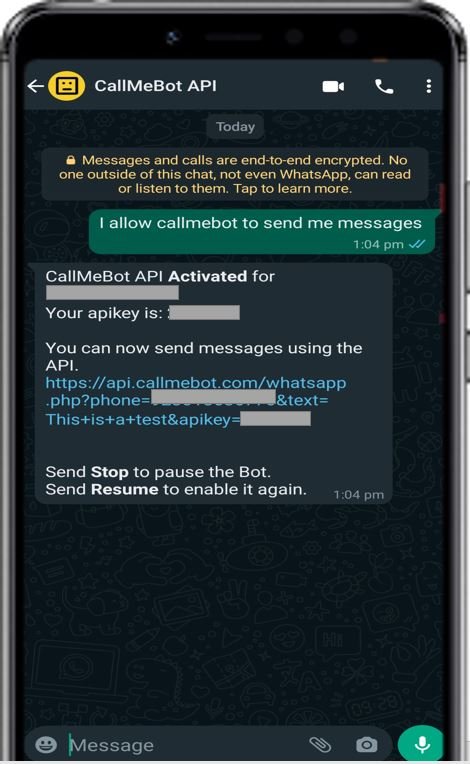
- Send this message “I allow callmebot to send me messages“ to the new Contact created (using WhatsApp of course)
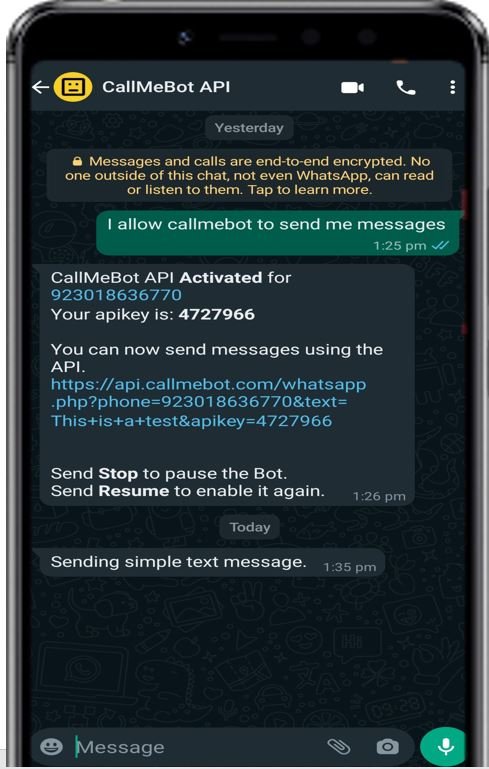
- Wait until you receive the message “API Activated for your phone number. Your APIKEY is XXXXXX” from the bot.
- Note: If you don’t receive the API Key in 2 minutes, please try again after 24 hours.
The WhatsApp message from the bot will contain the API key needed to send messages using the API. Keep this key safe as you will need it when configuring the Node-RED flow.
Setting up Node-RED WhatsApp Nodes
We will use Node-RED to send messages to our WhatsApp account. In order to get started with Node-RED on Raspberry Pi, refer to the guide:
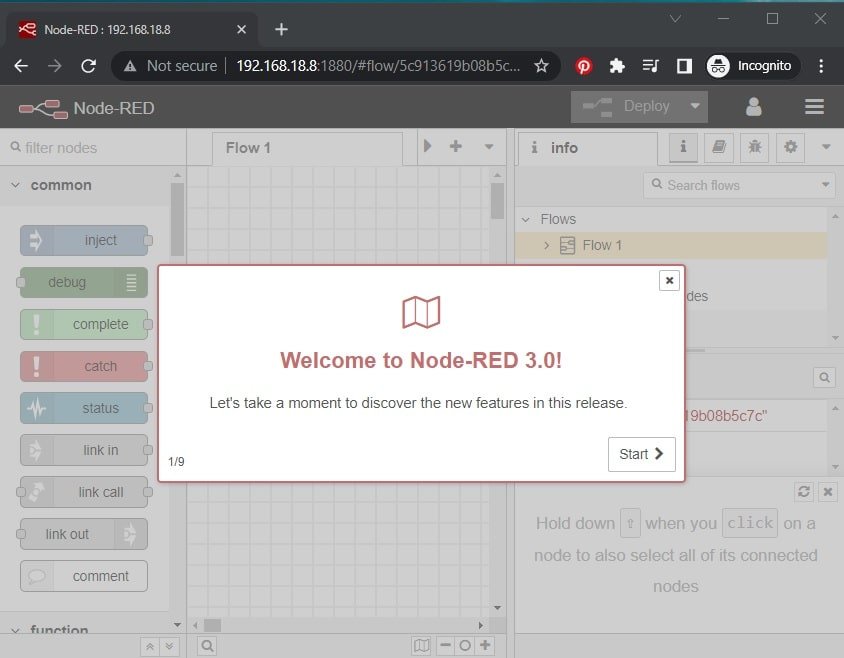
To access Node-RED, we need the IP address of our Raspberry Pi and the port number on which Node-RED is accessible. By default, it starts on port 1880. Open any web browser and enter the Raspberry Pi IP address followed by the port number.
192.168.18.8:1880Creating Flow to Send Simple Text Message to WhatsApp Account
This will open the Node-RED interface. You can start creating the flow.
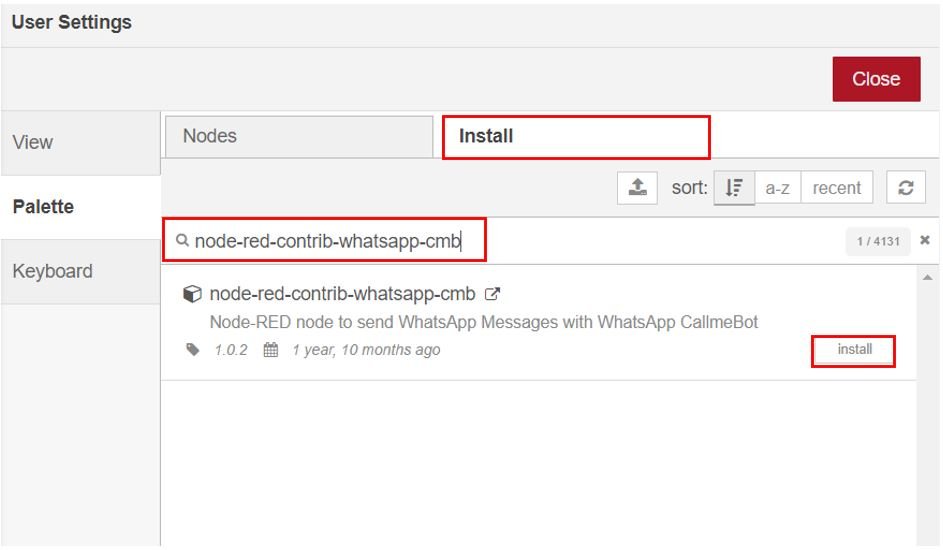
Head over to Menu > Manage Palette > Install. Type node-red-contrib-whatsapp-cmb in the search bar and press enter. Install the Node-RED node which sends WhatsApp messages with CallMeBot.
After the installation completes, the WhatsApp node will be present in the palette as shown below:
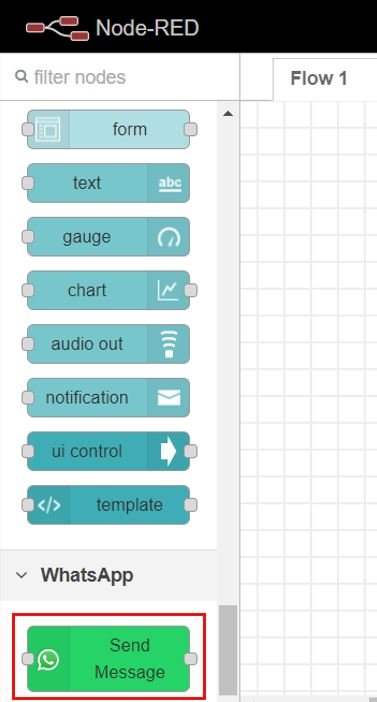
Now drag an inject node, Send Message node and debug node to the flow as shown below:

Now double click the inject node to edit its properties as shown below.
We use msg.text to send the message in the form of a string. Specify the message that you want to send. ‘Sending simple text message.’ is the string that we want to send to our WhatsApp number. Click the Done button when you have made the changes.
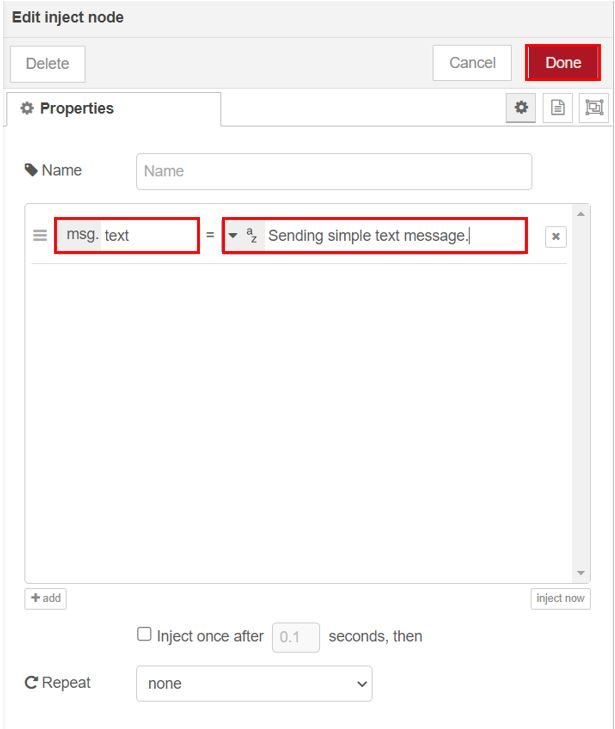
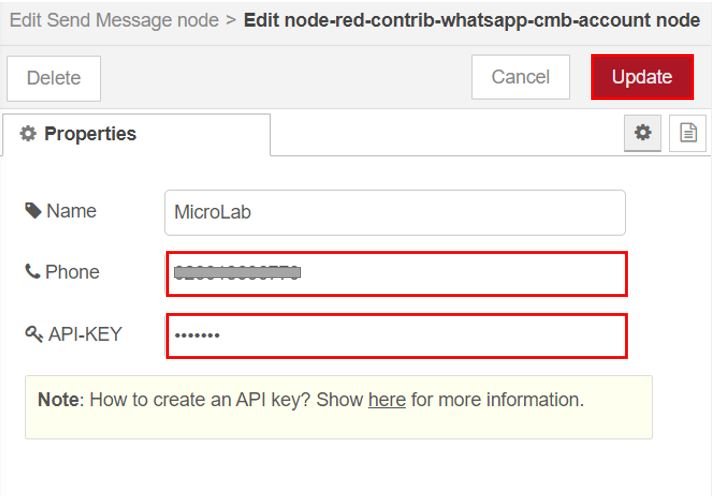
Now double click the Send Message node to edit its properties. Click the pencil icon to add your WhatsApp account.

Specify the name, phone number in international format (example: 913012222222) and the API key received from CallMeBot. Then click the Update button.
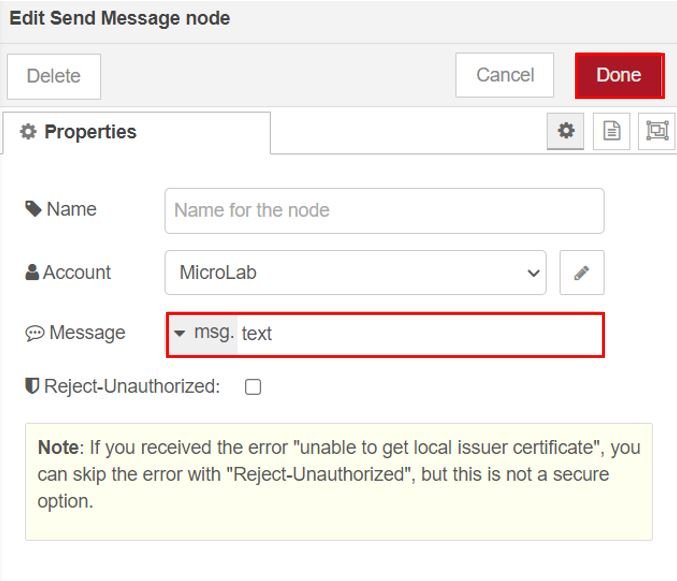
Now set the Message field as ‘msg.text’ and click the Done button.
Demonstration
Wire the nodes as shown below:
Now deploy the changes by clicking the Deploy button found at the top.
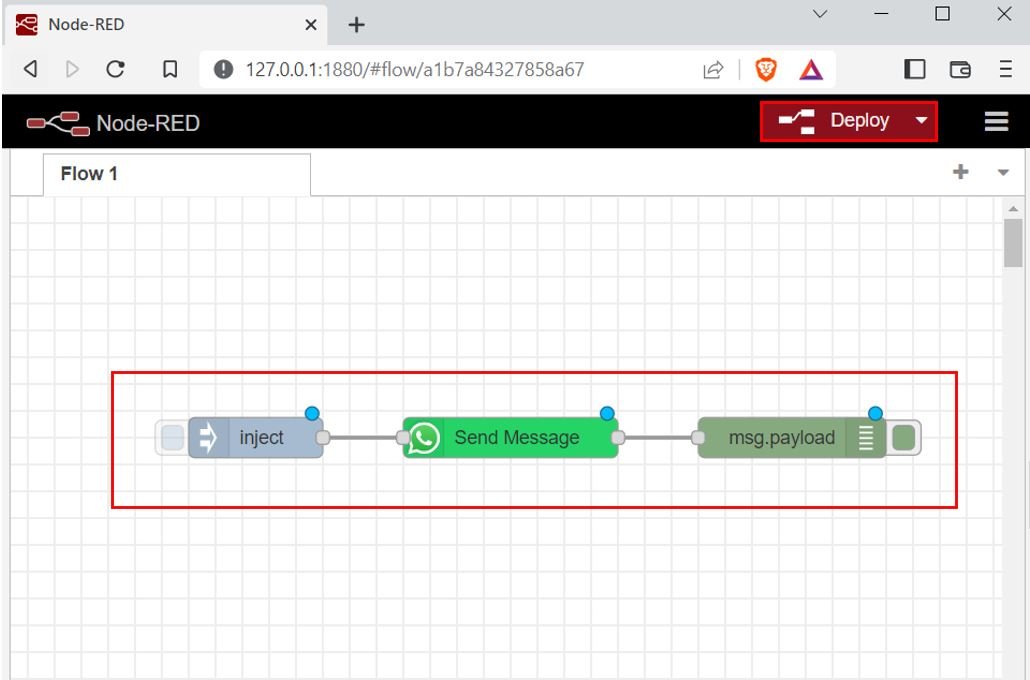
To test the WhatsApp Send Message feature, click the left square on the inject node to initiate the process. You will receive a notification on the top showing that it was successfully injected.

After a few moments, open your WhatsApp account to view the message sent from CallMeBot through Node-RED.
Troubleshooting Common Issues
If you encounter problems while sending WhatsApp messages from Node-RED, here are some common issues and their solutions. If the message fails to send, first verify that your API key is correct and has not expired. You can regenerate a new API key by sending the activation message to the CallMeBot number again. Make sure your phone number is entered in the correct international format without any spaces, dashes, or plus signs in the Node-RED configuration (for example, 913012222222 instead of +91-301-2222222).
If Node-RED shows a connection error, check that your Raspberry Pi has an active internet connection by running ping google.com from the terminal. The CallMeBot API requires outgoing HTTPS access on port 443. If you are behind a firewall or proxy, make sure this port is not blocked. Also ensure that Node-RED is running properly by checking its status with node-red-status or by restarting the service with node-red-restart.
Another common issue is rate limiting. CallMeBot limits the number of messages you can send per minute to prevent abuse. If you are sending messages too frequently, add a delay node between your trigger and the Send Message node to space out the messages. A delay of at least 5-10 seconds between messages is generally recommended.
Practical Use Cases for WhatsApp Alerts
Once you have the basic WhatsApp messaging flow working in Node-RED, you can extend it for many practical IoT applications. One popular use case is temperature monitoring, where you connect a DHT22 or BME280 sensor to your Raspberry Pi and configure Node-RED to send a WhatsApp alert when the temperature exceeds a defined threshold. This is useful for server rooms, greenhouses, or cold storage facilities where maintaining a specific temperature range is critical.
Another common application is security alerts. By connecting a PIR motion sensor or a magnetic door sensor to the Raspberry Pi GPIO pins, you can create a simple home security system that sends a WhatsApp notification whenever motion is detected or a door is opened. You can also integrate this with Node-RED Dashboard to create a web-based control panel where you can arm or disarm the alert system remotely.
For home automation projects, you can use WhatsApp alerts to monitor the status of appliances, receive notifications about water leak detection, or get updates when a washing machine cycle completes. The flexibility of Node-RED combined with WhatsApp notifications makes it easy to build a customized alert system for virtually any IoT scenario.
Summary
In this tutorial, we learned how to send WhatsApp messages using Node-RED and the CallMeBot API on a Raspberry Pi. We covered the complete process from obtaining the CallMeBot API key, installing the WhatsApp node in Node-RED, configuring the inject and Send Message nodes, and deploying the flow. We also explored troubleshooting tips for common issues and practical use cases for integrating WhatsApp notifications into your IoT projects. With this setup, you can receive real-time alerts and notifications directly on your smartphone, making it an excellent addition to any home automation or monitoring system.
You may also like to read:
- ESP8266 NodeMCU Motion Detection Notification on WhatsApp Number
- ESP32 Motion Detection Notification on WhatsApp Number
- ESP8266 NodeMCU WhatsApp Messages Notification BME280 Sensor Readings
- ESP32 Send BME280 Sensor Readings to WhatsApp Messages
Other Raspberry Pi tutorials:
- Headless Setup of Raspberry Pi without Keyboard and Monitor
- Install Mosquitto MQTT Broker on Raspberry Pi
- Install Node-RED on Raspberry Pi (32-bit and 64-bit RPI OS)
- Node-RED Send Email Alerts and Notifications
| Raspberry Pi Components | Amazon Links |
|---|---|
| Raspberry Pi 5 Starter Kit PRO - Turbine Black (128GB Edition) (8GB RAM) | Buy Now |
| Raspberry Pi 5 Starter Kit MAX - Turbine White (256 GB Edition) (16GB RAM) | Buy Now |
| Raspberry Pi 5 8GB | Buy Now |
| Raspberry Pi 5 4GB | Buy Now |
| Raspberry Pi 5 (16GB) | Buy Now |
| CM5 Pi Compute Module 5 Kit | Buy Now |
LM35 Proteus project file Arduino