⚠️ Affiliate Disclosure: This post contains Amazon affiliate links. If you purchase through our links, we may earn a small commission at no extra cost to you. We only recommend displays we have researched and whose listings we checked live on Amazon. Prices change constantly, so we deliberately don’t print them here. Always tap through and confirm the current price, model and variant on Amazon before buying.
Ultimate Buying Guide
🖥️ Best Large 7-Inch+ Displays for Raspberry Pi: 7″, 10.1″ HDMI & DSI Touchscreens
8 large Raspberry Pi touchscreens ranked, from the Waveshare 7″ HDMI LCD and the official Touch Display 2 to sharp 1280×800 10.1-inch panels, with real specs, honest verdicts and direct Amazon links.
✅ 8 Displays Reviewed
✅ Verified Amazon ASINs
✅ Live-Checked Listings
✅ Honest Pros & Cons
A large touchscreen turns a Raspberry Pi into something you can actually put on a wall, a desk or a machine. At 7 inches and above you have room for a Home Assistant dashboard, an OctoPrint or Klipper control panel, a RetroPie arcade, a digital photo frame, a kiosk or a full Raspberry Pi OS desktop you can use without squinting. The tiny 3.5-inch GPIO screens are fun, but they are too small and too slow for real interfaces.
Large Pi displays come in two families. HDMI screens (like the Waveshare 7″ HDMI LCD (C), ROADOM and ELECROW monitors) work with any Pi and most other boards, using HDMI for video and USB for touch. DSI screens (like the official Raspberry Pi Touch Display 2) connect through the Pi’s ribbon-cable display port, leave the HDMI ports free and are recognized by Raspberry Pi OS with no setup. This guide ranks 8 displays from 7 to 10.1 inches on what actually matters: resolution, panel type, interface, touch support and how cleanly they mount to a Pi.
💡 Reality check before you buy: Most 7-inch HDMI panels are 1024×600, which is fine for dashboards but feels cramped as a full desktop; step up to 1280×800 if you want to browse or code on it. A Raspberry Pi 5 uses micro-HDMI and a Pi Zero uses mini-HDMI, so check which adapter or cable is included. Many HDMI screens report only single-point touch under Raspberry Pi OS (multi-touch is often Windows-only). Powering a 10.1-inch screen from a Pi USB port can cause flicker or undervoltage warnings, so a separate 5V supply is safer. Finally, the official Touch Display 2 is natively a portrait 720×1280 panel that Raspberry Pi OS rotates to landscape, and third-party Amazon sellers often list it well above its official retail price.
🖥️ Quick Comparison: All 8 Large Raspberry Pi Displays
| Display | Size · Resolution | Interface | Key Feature | Best For | Buy |
|---|
| 🥇 Waveshare 7″ HDMI LCD (C) | 7″ · 1024×600 IPS | HDMI + USB touch | 5-pt capacitive | Best Overall | Buy Here → |
| 🍓 Raspberry Pi Touch Display 2 | 7″ · 720×1280 IPS | DSI (ribbon) | 5-pt, native Pi OS | Best Official / Pi 5 | Buy Here → |
| 🖥️ Waveshare 10.1″ HDMI LCD | 10.1″ · 1280×800 IPS | HDMI + USB-C touch | Toughened glass, audio | Best 10.1-Inch | Buy Here → |
| 💰 ROADOM 7″ Touchscreen | 7″ · 1024×600 IPS | HDMI + micro-USB | Pi mounts on back | Best Value 7-Inch | Buy Here → |
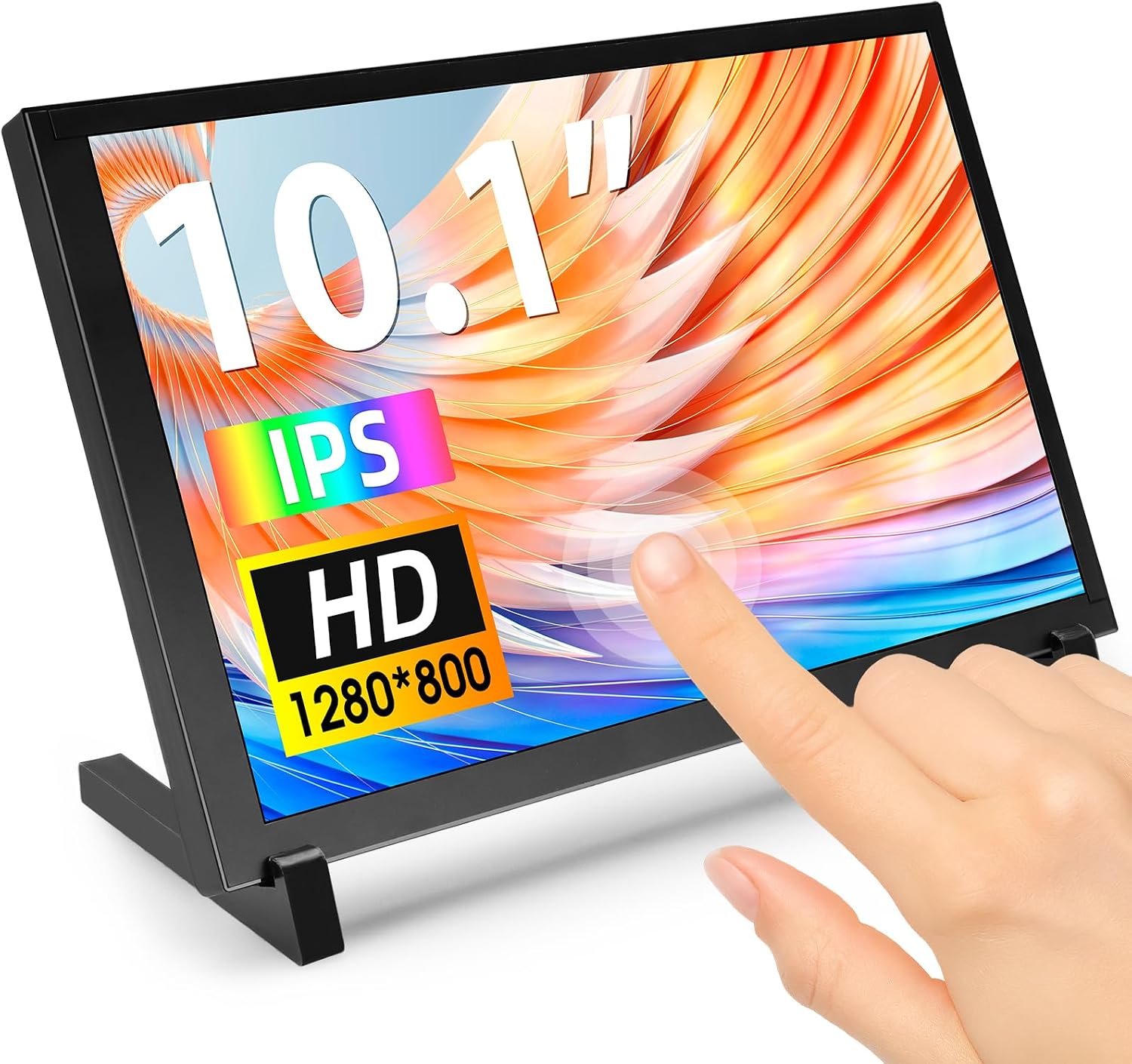
| 🧳 ELECROW 10.1″ Monitor | 10.1″ · 1280×800 IPS | HDMI + USB touch | Stand included | Best Portable 10.1″ | Buy Here → |
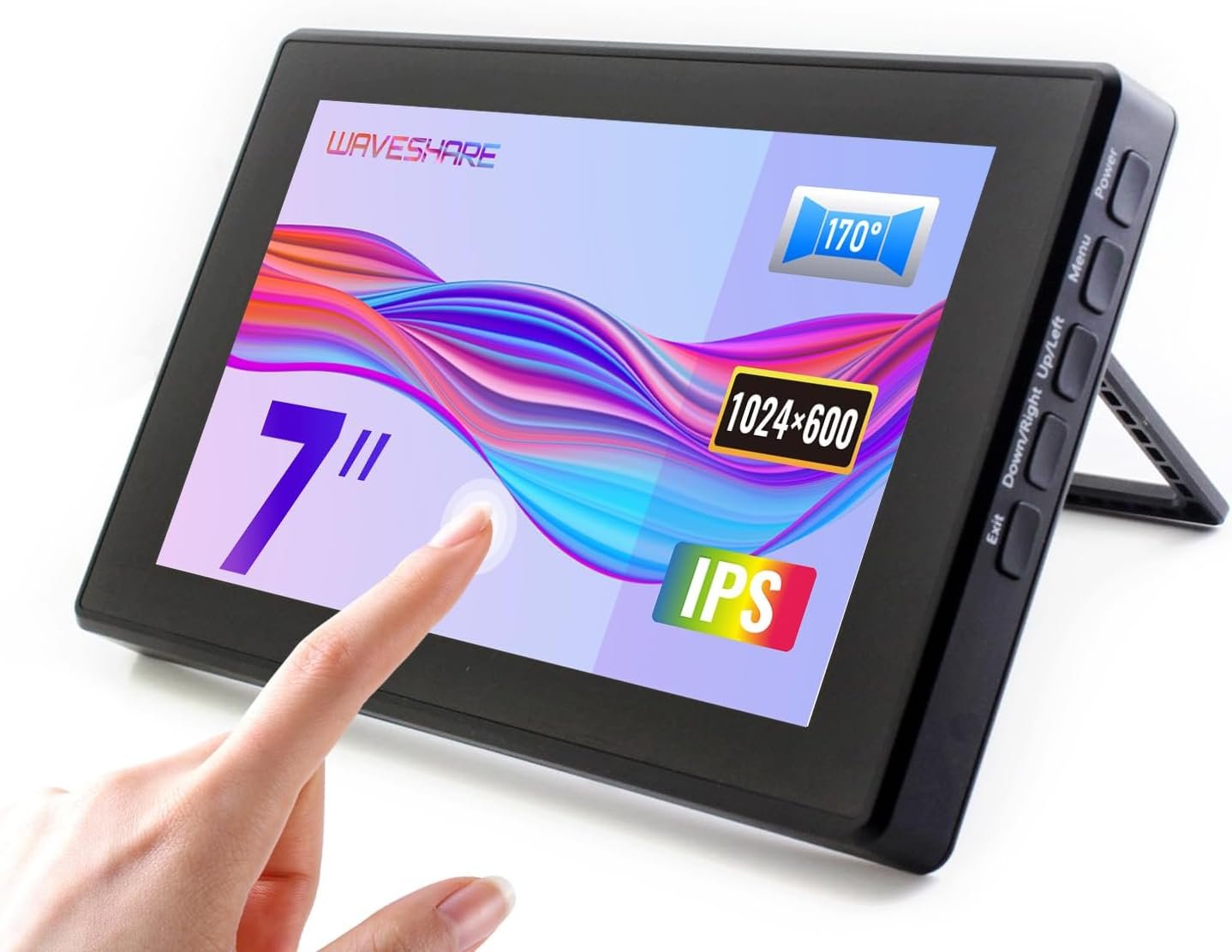
| 🛡️ Waveshare 7″ HDMI LCD (H) + Case | 7″ · 1024×600 IPS | HDMI / VGA + USB | 6H glass, OSD, audio | Best Enclosed 7″ | Buy Here → |
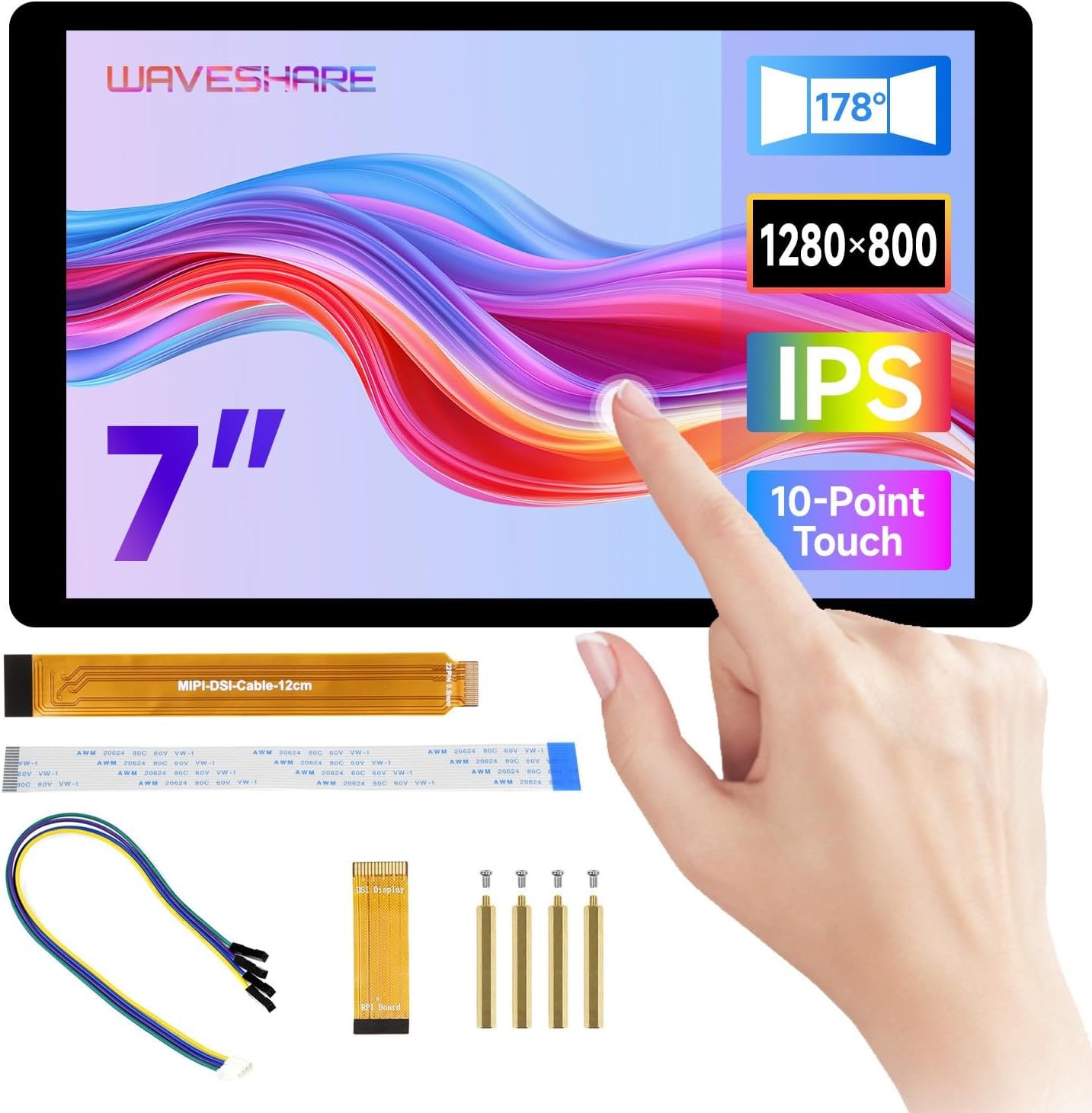
| 🔍 Waveshare 7″ DSI Display 2 | 7″ · 1280×800 IPS | DSI (ribbon) | 10-pt, optical bonding | Sharpest 7″ DSI | Buy Here → |
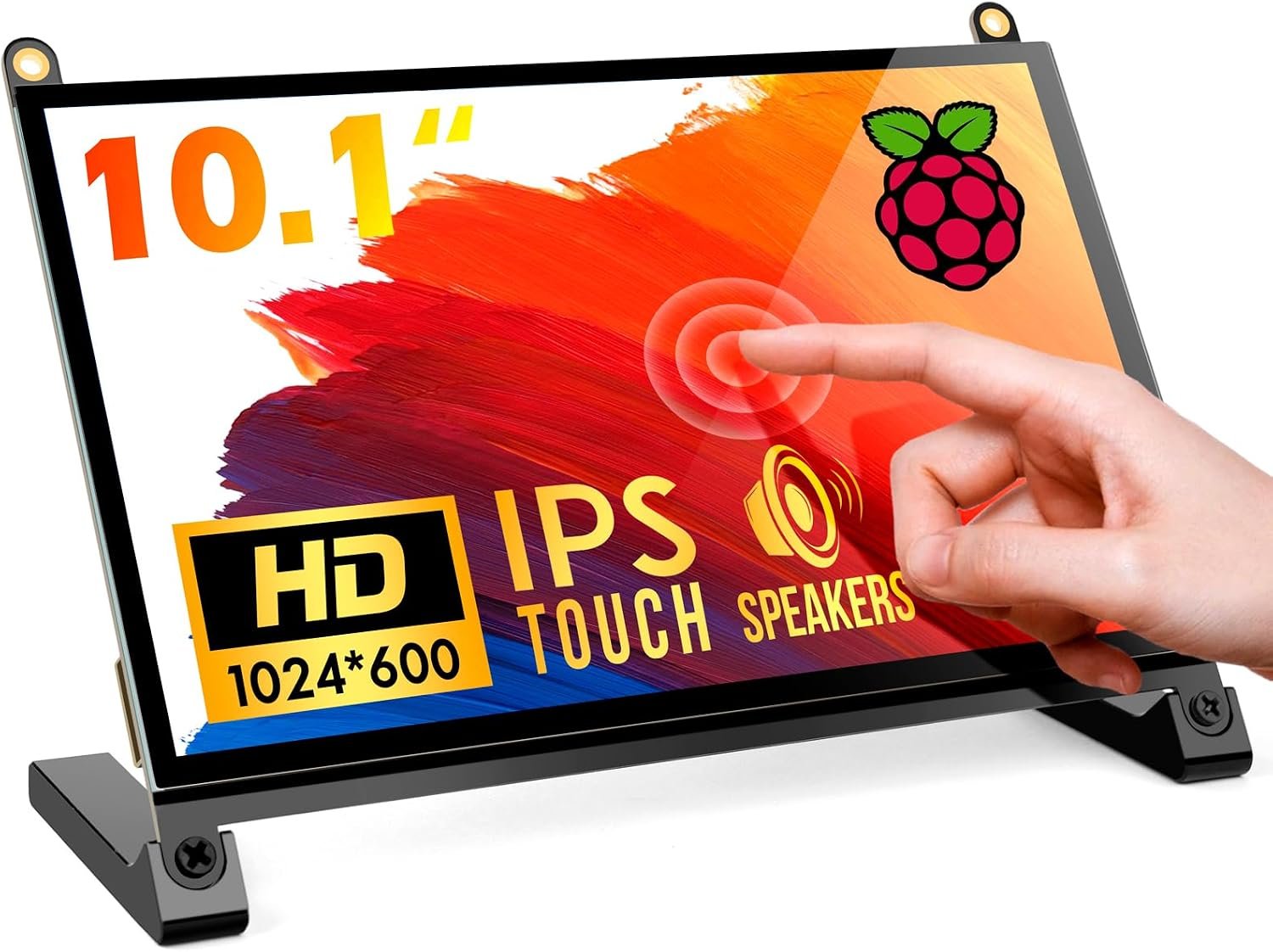
| 🏷️ ROADOM 10.1″ Touchscreen | 10.1″ · 1024×600 IPS | HDMI + micro-USB | 5-pt, 300 nits | Budget 10.1-Inch | Buy Here → |
Prices change often, so we’ve left them out. Tap “Buy Here” to see the current price, bundle and stock on Amazon. Check which HDMI adapter (micro-HDMI for Pi 5/4, mini-HDMI for Pi Zero) is included before ordering.
🔍 What to Look for in a Large Raspberry Pi Display
📐
Size & Resolution
7 inches is the sweet spot for dashboards and control panels; 10.1 inches is better for a desktop or media. Resolution matters more than size: 1024×600 is fine for big touch buttons, while 1280×800 gives you a usable desktop and sharper text.
🔌
HDMI vs DSI
HDMI screens work with every Pi model and other boards, but need an HDMI cable plus a USB cable for touch. DSI screens use the Pi’s ribbon display port, keep HDMI free and are detected by Raspberry Pi OS automatically, but only work with Pi boards that have a DSI connector.
👆
Touch Type
Look for capacitive (glass, smartphone-like) rather than resistive touch. Check how many touch points work on Raspberry Pi OS specifically: many HDMI panels advertise 5 or 10-point touch but report single-point under Linux.
🌈
Panel Quality
IPS panels give wide 170 to 178° viewing angles and accurate color, which matters for wall-mounted dashboards viewed from the side. Toughened glass and optical bonding improve durability and reduce glare.
⚡
Power & Mounting
A 7-inch screen can usually be powered from the Pi; 10.1-inch screens are happier on their own 5V supply. Mounting holes for the Pi on the back, a stand or a case decide whether your build ends up tidy or a cable mess.
🏆 Detailed Reviews: All 8 Large Raspberry Pi Displays
🥇 BEST OVERALL

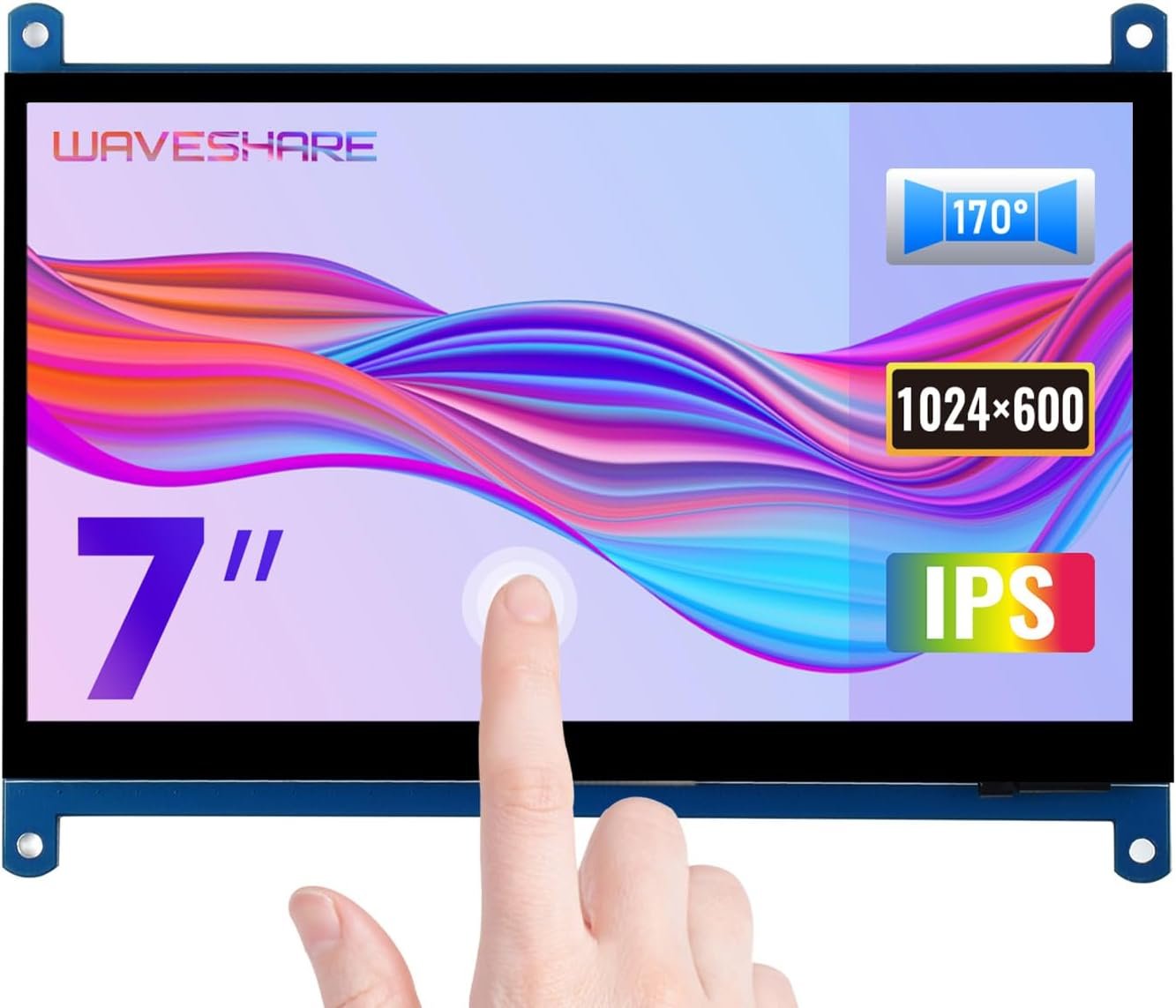
The Waveshare 7inch HDMI LCD (C) is the display most Raspberry Pi makers should start with, and it has been the reference 7-inch Pi screen for years. The current revision uses a 1024×600 IPS panel with 5-point capacitive touch, and it is listed as compatible with the Pi 5, 4B, 3B+, Zero 2 W and CM3+/CM4. Video arrives over HDMI and touch over USB, so it works under Raspberry Pi OS, Ubuntu, Kali and RetroPie, and doubles as a driver-free touch monitor for Windows 11/10. Standoffs let you bolt the Pi directly to the back, there is a backlight power switch to save power, and Waveshare publishes a detailed online wiki covering rotation and touch calibration.
✅ Pros- Proven, well-documented Waveshare design
- IPS panel with wide viewing angles
- Pi mounts on the back with standoffs
- Works with Pi OS and Windows, no drivers
❌ Cons- 1024×600 is tight for a full desktop
- Bare PCB back, no case included
- Pi 5 needs a micro-HDMI cable or adapter
🎯 Verdict: The best all-round large Raspberry Pi display. Reliable, well supported and works with every Pi model.
👉 Check Price on Amazon →
🍓 BEST OFFICIAL / PI 5 NATIVE
Raspberry Pi Touch Display 2 (7″)
⭐ 4.6/5 · Plug-and-Play DSI Screen
720×1280
IPS · 24-BIT COLOR
Pi 5 / 4 / 3
ZERO-SETUP IN PI OS

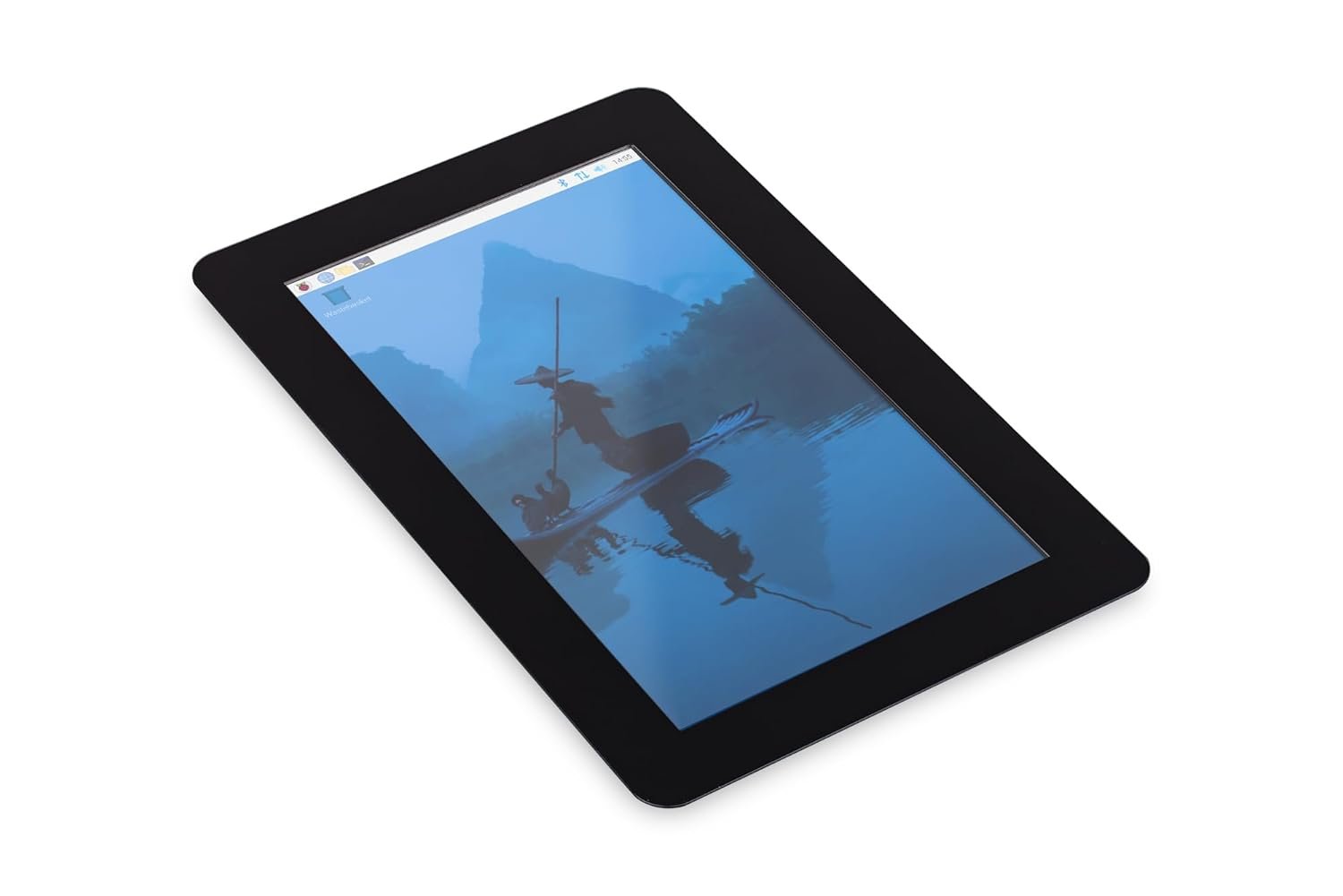
The Raspberry Pi Touch Display 2 is the official 7-inch screen from Raspberry Pi, and it is the cleanest way to give a Pi a touchscreen. It connects over the DSI ribbon cable, so your HDMI ports stay free, and it is powered from the Pi’s GPIO header, so there is only one power supply for the whole build. Raspberry Pi OS detects it automatically with full multi-touch and an on-screen keyboard, and the Pi screws onto the back. The 720×1280 panel is natively portrait and is rotated to landscape by the OS. It is the safest pick for kiosks, smart-home panels and products where you want first-party long-term support. Note that this Amazon listing is from a third-party seller and has been priced well above Raspberry Pi’s official retail price, so compare with an approved reseller before buying.
✅ Pros- Official, long-term supported hardware
- DSI keeps HDMI ports free
- Powered from the Pi, single supply
- Zero configuration in Raspberry Pi OS
❌ Cons- Amazon price often above official retail
- 720 px short side, not a desktop screen
- Only works with Pi boards that have DSI
🎯 Verdict: The best official Raspberry Pi touchscreen. Pick it for kiosks and panels where plug-and-play matters most.
👉 Check Price on Amazon →
🖥️ BEST 10.1-INCH · ⭐ 4.6/53. Waveshare 10.1inch HDMI Capacitive Touch LCD
10.1″ IPS · 1280×800 · HDMI + USB-C touch · 6H toughened glass · 3.5 mm audio + speaker header · OSD
Buy Here →

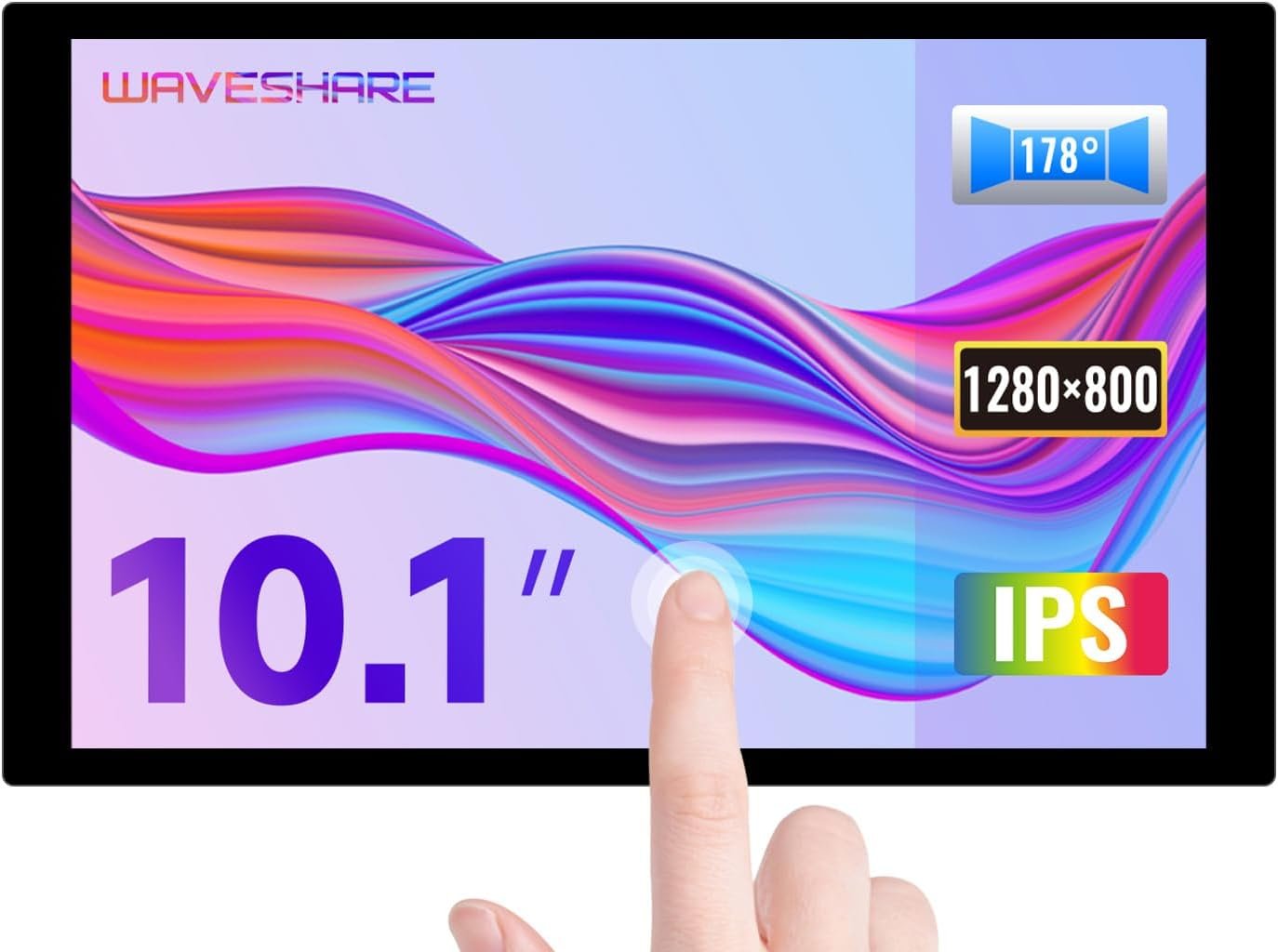
If 7 inches feels cramped, this Waveshare 10.1-inch panel is the upgrade to buy. Its 1280×800 IPS resolution makes the Raspberry Pi OS desktop, Chromium and VS Code genuinely usable, and the 178° viewing angle suits wall-mounted dashboards. Touch runs over a USB Type-C port, the front is 6H toughened glass, and there is a 3.5 mm audio jack, a 4-pin speaker header and a multi-language OSD for brightness and power. It supports Pi 5/4/3 and Zero (adapters needed for Zero), Jetson Nano, and works as a driver-free 10-point touch monitor on Windows.
✅ Pros: Sharp 1280×800 IPS; toughened glass front; HDMI audio out; OSD menu; works with Pi, Jetson and PC.
❌ Cons: Bigger power draw, use a separate 5V supply; single-point touch on some Linux setups; Pi Zero needs extra adapters.
🎯 Verdict: The best 10.1-inch Raspberry Pi display for a desktop, media centre or large dashboard.
💰 BEST VALUE 7-INCH · ⭐ 4.5/54. ROADOM 7″ Touchscreen Monitor
7″ IPS · 1024×600 · HDMI video + micro-USB power/touch · Pi mounts on back · 2 stands · driver-free
Buy Here →

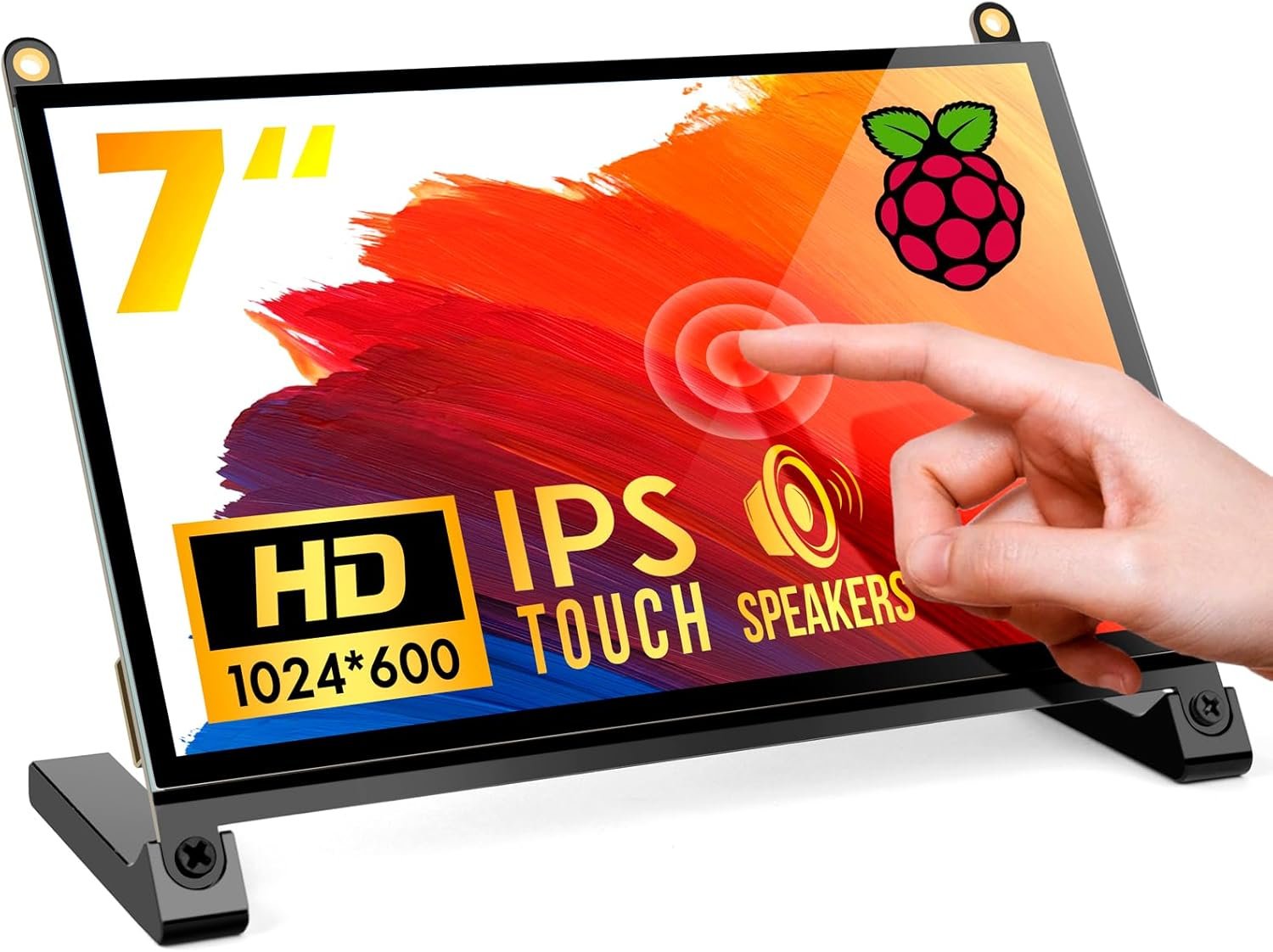
The ROADOM 7-inch is the most reviewed Pi touchscreen on Amazon in this guide, with well over a thousand ratings shared across its listing. It pairs a 1024×600 IPS panel with capacitive touch and a back that is designed to hold your Raspberry Pi with hidden wiring, plus two detachable stands for desk use. It is fully plug and play over HDMI and micro-USB on the Pi 5, 4, 3 and Zero, and also works with Windows, which makes it a handy bench monitor for headless Pi projects.
✅ Pros: Huge review base; Pi mounts neatly on the back; stands included; true plug and play.
❌ Cons: Same 1024×600 limit as other 7″ panels; generic brand docs are thin; micro-USB rather than USB-C.
🎯 Verdict: The best value 7-inch Pi screen with a tidy all-in-one build. A safe, popular buy.
🧳 BEST PORTABLE 10.1″ · ⭐ 4.5/55. ELECROW 10.1″ Touchscreen Monitor
10.1″ IPS · 1280×800 · HDMI + USB touch · stand included · Pi 3/4/5, Jetson Nano, PC
Buy Here →

The ELECROW 10.1-inch monitor gives you the same sharp 1280×800 IPS resolution as our 10.1-inch pick in a finished, portable housing with a stand. ELECROW is a well-known maker brand, and this screen is aimed squarely at Raspberry Pi, Jetson Nano and PC projects. Plug in HDMI for video and USB for touch and power and it just works. Per the listing, it supports 5-point touch on Windows and single-point touch on Raspberry Pi OS, Ubuntu and Kali, which is all most dashboards and kiosk apps need.
✅ Pros: Sharp 1280×800 IPS; enclosed body with stand; established maker brand; plug and play.
❌ Cons: Single-point touch on Pi OS; no Pi mounting on the back; bulkier than bare panels.
🎯 Verdict: The best portable 10.1-inch screen for a Pi workstation or test bench.
🛡️ BEST ENCLOSED 7″ · ⭐ 4.5/56. Waveshare 7inch HDMI LCD (H) with Case
7″ IPS · 1024×600 (accepts up to 1920×1080) · 6H toughened glass · OSD · 3.5 mm audio · HDMI + VGA input
Buy Here →

The Waveshare 7″ LCD (H) with Case is the finished-product version of a 7-inch Pi screen. It wraps a 1024×600 IPS panel in a case with a 6H toughened glass front and adds a proper monitor feature set: a multi-language OSD menu for brightness and contrast, a 3.5 mm audio jack with HDMI audio, and even VGA input (cable sold separately). It accepts input resolutions up to 1920×1080 and scales them down. It is ideal for a 3D printer control panel, a workshop monitor or anywhere a bare PCB would get damaged.
✅ Pros: Toughened glass and full case; OSD menu; HDMI audio jack; HDMI and VGA inputs.
❌ Cons: Costs more than the bare (C) board; still 1024×600 physical pixels; bulkier than a DSI screen.
🎯 Verdict: The best enclosed 7-inch Pi display when durability and a monitor-style OSD matter.
🔍 SHARPEST 7″ DSI · ⭐ 4.4/57. Waveshare 7inch DSI Capacitive Touch Display 2
7″ IPS · 1280×800 · DSI · 10-point touch · optical bonding · 6H glass · 60 Hz · 68% NTSC
Buy Here →

Want DSI convenience with more pixels than the official screen? The Waveshare 7inch DSI Display 2 packs 1280×800 into 7 inches, uses optical bonding for a clearer, glare-resistant image behind 6H tempered glass, and supports 10-point touch. It is driven directly over the Pi’s DSI port at up to 60 Hz, works with the Pi 5, CM5, 4B, CM4 and 3B+, and supports software backlight control in Bookworm and Bullseye. It is the sharpest 7-inch option in this list.
✅ Pros: Highest pixel density here; optical bonding; 10-point touch; keeps HDMI free.
❌ Cons: DSI-only, so Pi boards with DSI ports only; newer listing with few reviews; needs a Pi 5 DSI cable (check box).
🎯 Verdict: The best high-resolution 7-inch DSI screen for crisp UIs on a Pi 5.
🏷️ BUDGET 10.1-INCH · ⭐ 4.3/58. ROADOM 10.1″ Touchscreen Monitor
10.1″ IPS · 1024×600 · 5-point capacitive · 300 cd/m² · 700:1 contrast · HDMI + micro-USB
Buy Here →
The ROADOM 10.1-inch is the larger sibling of our value pick. It uses a 1024×600 IPS panel with 300 cd/m² brightness, a 700:1 contrast ratio and responsive 5-point capacitive touch, all plug and play on the Raspberry Pi. Because the resolution is the same as the 7-inch panels, everything appears bigger rather than sharper, which actually suits wall-mounted Home Assistant panels, kitchen dashboards and touch kiosks viewed from a distance.
✅ Pros: Big 10.1″ touch area; IPS with wide viewing angles; large review base; plug and play.
❌ Cons: Only 1024×600, so text is soft up close; needs a decent 5V supply; not ideal as a desktop.
🎯 Verdict: The best budget 10.1-inch screen when size matters more than sharpness.
🛒 How to Choose the Right Raspberry Pi Display
🏠
Building a Home Assistant or smart-home panel?
Get the Waveshare 7″ HDMI LCD (C), or the ROADOM 10.1″ if it will be read from across the room.
🍓
Want the cleanest Pi 5 kiosk with no extra cables?
The official Raspberry Pi Touch Display 2 runs over DSI and is powered from the Pi.
💻
Using the Pi as a small desktop?
Choose a 1280×800 screen: the Waveshare 10.1″ HDMI LCD or the ELECROW 10.1″.
💰
Need a cheap, proven 7-inch screen?
The ROADOM 7″ has the largest review base and mounts the Pi on its back.
🖨️
Making a 3D printer or workshop panel?
The Waveshare 7″ (H) with Case adds toughened glass, an OSD and audio.
🔍
Want the sharpest possible 7-inch UI?
The Waveshare 7″ DSI Display 2 gives 1280×800 with optical bonding.
⚙️ Key Specs Compared: Side by Side
| Spec | Waveshare 7″ (C) | Pi Touch Display 2 | Waveshare 10.1″ | ELECROW 10.1″ | Waveshare 7″ DSI 2 |
|---|
| Screen Size | 7″ | 7″ | 10.1″ ⭐ | 10.1″ ⭐ | 7″ |
| Resolution | 1024×600 | 720×1280 | 1280×800 ⭐ | 1280×800 ⭐ | 1280×800 ⭐ |
| Interface | HDMI + USB | DSI ⭐ | HDMI + USB-C | HDMI + USB | DSI ⭐ |
| Touch Points (per listing) | 5 | 5 | Up to 10 ⭐ | 5 Win / 1 Pi OS | 10 ⭐ |
| Works With Non-Pi Boards / PC | Yes ⭐ | No | Yes ⭐ | Yes ⭐ | No |
| Keeps Pi HDMI Ports Free | No | Yes ⭐ | No | No | Yes ⭐ |
| Glass / Enclosure | Bare PCB | Bezel + mounts | 6H toughened glass ⭐ | Enclosed + stand | 6H glass, optical bonding ⭐ |
Specs are taken from the live Amazon listings and manufacturer documentation. Touch-point support on Raspberry Pi OS can differ from Windows, and sellers sometimes update panels between batches, so always confirm details on the listing before buying.
❓ Frequently Asked Questions
Is HDMI or DSI better for a Raspberry Pi touchscreen?
DSI screens connect through the Pi’s ribbon-cable display port, are detected automatically by Raspberry Pi OS, leave both HDMI ports free and can often be powered from the Pi itself, which makes them ideal for kiosks and built-in panels. HDMI screens are more flexible: they work with any Pi model (including those without a DSI port), with other single-board computers and with a laptop or PC. If the screen will live permanently on one Pi 5 or Pi 4, DSI is the tidier choice; if you want a bench monitor you can move between boards, choose HDMI.
Will a 7-inch HDMI touchscreen work with the Raspberry Pi 5?
Yes. Any of the HDMI screens here work with the Pi 5, but the Pi 5 has micro-HDMI ports, so you need a micro-HDMI to HDMI cable or adapter if one is not in the box. Touch works by connecting the screen’s USB touch port to one of the Pi’s USB ports. On Pi 5 the screen usually works out of the box on the latest Raspberry Pi OS (Bookworm or later); if the image is cropped or the wrong resolution, set the resolution in the Screen Configuration tool or follow the vendor wiki.
Can I power a 10.1-inch display from the Raspberry Pi USB port?
Sometimes, but it is not recommended. A 10.1-inch panel and backlight can pull more current than a Pi USB port comfortably supplies, which leads to flicker, a dim backlight or undervoltage warnings on the Pi. Use the screen’s dedicated power input with its own 5V 2A (or higher) supply, and keep the official 27W supply on a Pi 5. A 7-inch screen is usually fine powered from the Pi.
Why does my HDMI touchscreen only register one touch point on Raspberry Pi OS?
Many HDMI touch controllers expose full multi-touch to Windows but only single-point touch to Linux, and some listings say this explicitly. For tapping buttons in a Home Assistant dashboard, OctoPrint or a kiosk browser, single-touch is perfectly usable. If you need pinch-zoom and gestures on the Pi, choose a DSI display such as the official Touch Display 2 or the Waveshare DSI Display 2, which support multi-touch natively under Raspberry Pi OS.
How do I rotate a Raspberry Pi touchscreen to portrait or landscape?
On current Raspberry Pi OS (Wayland), open Preferences then Screen Configuration, right-click the display and choose an orientation; touch input follows the rotation automatically on most supported screens. On older or Lite images you can rotate with the display rotation settings in config.txt or the kernel command line, and you may need to apply a matching touch transformation. The official Touch Display 2 is natively portrait, so landscape use is handled by the OS rotation.
🏁 Final Verdict: Best Raspberry Pi Display for Every Build
The right large touchscreen for every project and budget:
🥇 Best Overall: Waveshare 7″ HDMI LCD (C): proven 1024×600 IPS touchscreen for every Pi
Buy Here →🍓 Best Official / Pi 5: Raspberry Pi Touch Display 2: DSI, powered by the Pi, zero setup
Buy Here →🖥️ Best 10.1-Inch: Waveshare 10.1″ HDMI LCD: 1280×800 IPS with toughened glass
Buy Here →💰 Best Value 7-Inch: ROADOM 7″: huge review base, Pi mounts on the back
Buy Here →🧳 Best Portable 10.1″: ELECROW 10.1″: 1280×800 in an enclosed body with stand
Buy Here →🛡️ Best Enclosed 7″: Waveshare 7″ (H) with Case: glass front, OSD and audio
Buy Here →🔍 Sharpest 7″ DSI: Waveshare 7″ DSI Display 2: 1280×800 with optical bonding
Buy Here →🏷️ Budget 10.1-Inch: ROADOM 10.1″: big IPS touch panel for wall dashboards
Buy Here →No single screen is right for every Pi project, but every display here earns its place. For most builds the Waveshare 7inch HDMI LCD (C) is the one to buy: a proven IPS touchscreen that works with every Raspberry Pi and doubles as a PC touch monitor. Choose the official Raspberry Pi Touch Display 2 for the cleanest Pi 5 kiosk, step up to the Waveshare 10.1″ 1280×800 or ELECROW 10.1″ for a usable desktop, and save money with the ROADOM screens when size matters more than sharpness. Planning a smart-home wall panel? See our Home Assistant hardware guide. Building a mobile robot with a screen? Start with our Raspberry Pi robot kits guide, compare alternatives in our Orange Pi and Banana Pi buying guides, and browse all our Raspberry Pi, ESP32, Arduino and STM32 tutorials.
💬 Not sure which screen fits your project? Tell us what you’re building (a Home Assistant panel, a RetroPie arcade, a 3D printer controller or a Pi desktop) and which Pi you’re using in the comments below, and we’ll point you to the right display.
All Amazon links above use our affiliate tag (microlab05-20). Purchasing through them supports microcontrollerslab.com at no extra cost to you. Prices and availability change frequently, so always confirm the current price on Amazon before buying.
| Arduino Components | Amazon Links |
|---|
| Arduino Starter Kit | Buy Now |
| Arduino Development Kit | Buy Now |
| Arduino Smart Robot Car Kit V4 | Buy Now |
| Arduino Sensors Kit | Buy Now |